
Your system shows 500 units. The floor has 347.
A customer order gets cancelled, a picker walks the same aisle twice, and the month-end count runs late again.
If that sounds familiar, the problem is rarely your team. It is usually the gap between what happens on the floor and what your records say happened.
Odoo Barcode scanning closes that gap. It turns every pick, receipt, transfer and count into a scan that updates stock in real time, so the numbers on screen match the shelves.
This guide walks you through the full setup, from switching on the app to putting scanners in your team’s hands, with the practical decisions a warehouse operations manager actually has to make.
Why Odoo Barcode Scanning Changes Warehouse Accuracy
Manual data entry is the quiet tax on every warehouse. People mistype, transpose digits, and skip lines under pressure.

More channels and more SKUs mean stock records have to stay accurate in real time, which is exactly what barcode scanning delivers.
Odoo Barcode solutions remove most of that risk by replacing typing with scanning. Your team scans a location, scans a product, confirms a quantity, and Odoo writes the movement instantly.
Strong Odoo inventory management depends on live, trustworthy data, and barcode scanning is the fastest route to it. It also speeds up the work: fewer keystrokes, fewer paper pick lists, and far less time spent reconciling counts.
What You Need Before You Start Odoo Barcode Configuration
Start by getting the basics right before you touch any settings. A clean setup now saves you headaches and endless rework later, and it makes your Odoo barcode configuration much easier.
The right Odoo apps
All barcode features live inside the Odoo Inventory app. So, install and set that up first. Then, take a good look at your Odoo warehouse management structure- warehouses, storage locations, and operation types. They should actually match how things work in your space. Scanning just builds on top of that.
Scanning hardware
Odoo does not box you in. You do not need to lock yourself into a single type of scanner for the whole warehouse. Most warehouses blend a dedicated Odoo barcode scanner at busy workstations with phones or tablets for staff who need to move around. Pick the right device for each job, not just one model for everyone.
A tidy warehouse structure
Map your real locations before you label anything. Aisles, racks, bins and staging areas should exist in Odoo the way they exist on the floor. Good structure is the backbone of reliable Odoo inventory tracking, and it makes Odoo warehouse automation much easier to layer on later.
| Foundation | What to confirm before setup |
| Inventory app | Installed, with your product catalogue and units of measure loaded. |
| Warehouse layout | Map every physical location to an Odoo location with a barcode. |
| Operation types | Define receipts, internal transfers, and deliveries for each warehouse. |
| Hardware | At least one tested scanner or camera device per active zone. |
| Team | A named floor champion for the pilot and basic training time booked. |
Step-by-Step Odoo Barcode Configuration
Here is the Odoo barcode setup in the order a consultant would run it. Work through it in a test environment first, then promote to live once you are happy.
- Turn on the Barcode app
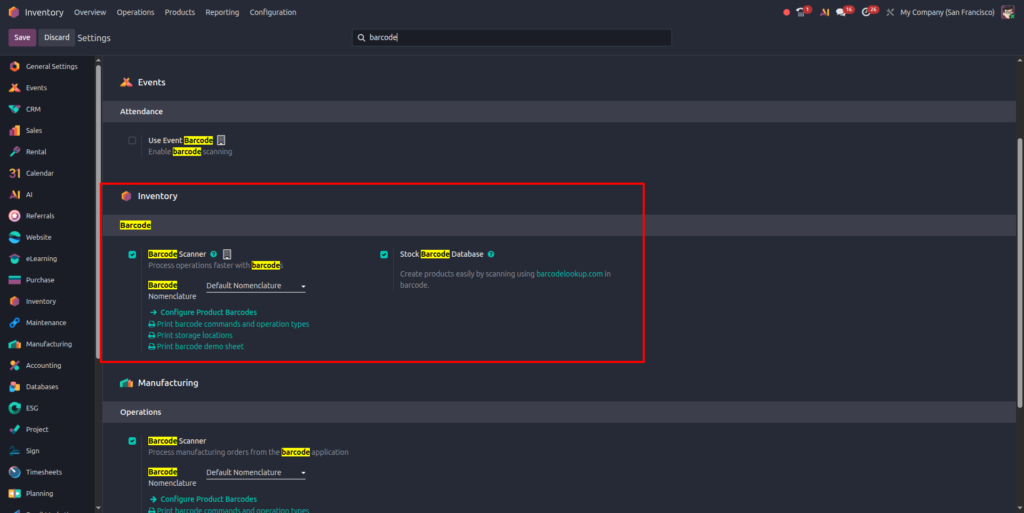
Open the Inventory app, go to Settings, and enable the Barcode option under the Operations section. This activates the Barcode menu and the dedicated scanning interface your team will use.
- Confirm warehouses and locations
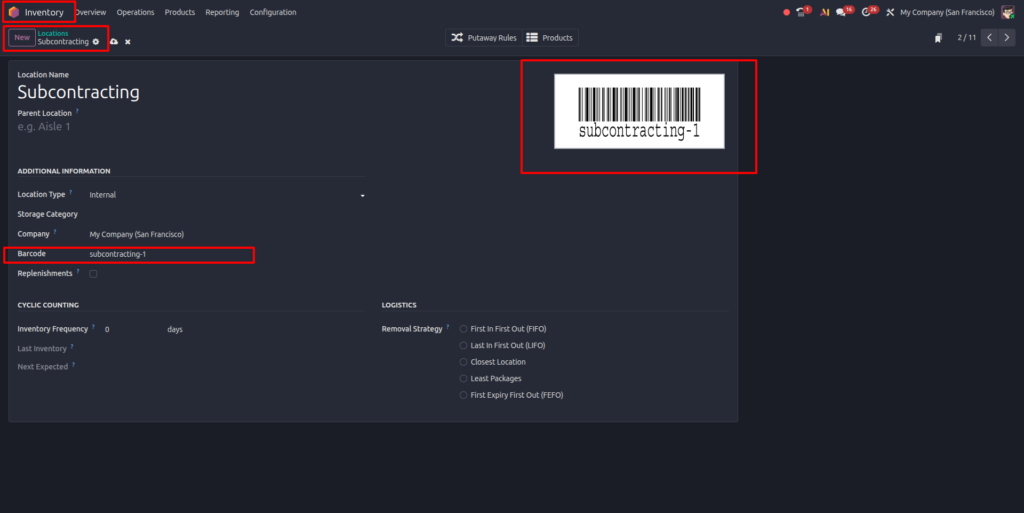
Check that each warehouse and every storage location carries a barcode. Odoo can generate location barcodes for you, which you can print as shelf and bin labels so pickers can scan a location before scanning a product.
- Set your barcode nomenclature
Nomenclature rules tell Odoo how to read a scanned code, whether it represents a product, a location, a lot or a quantity. The default nomenclature handles standard GS1 and EAN barcodes well. Build custom rules only if your labels encode extra data such as weight or batch.
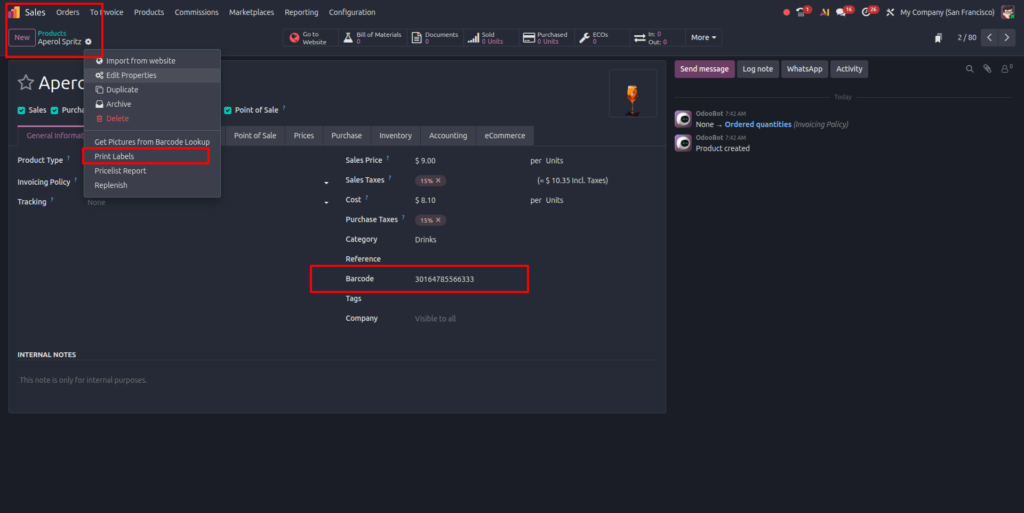
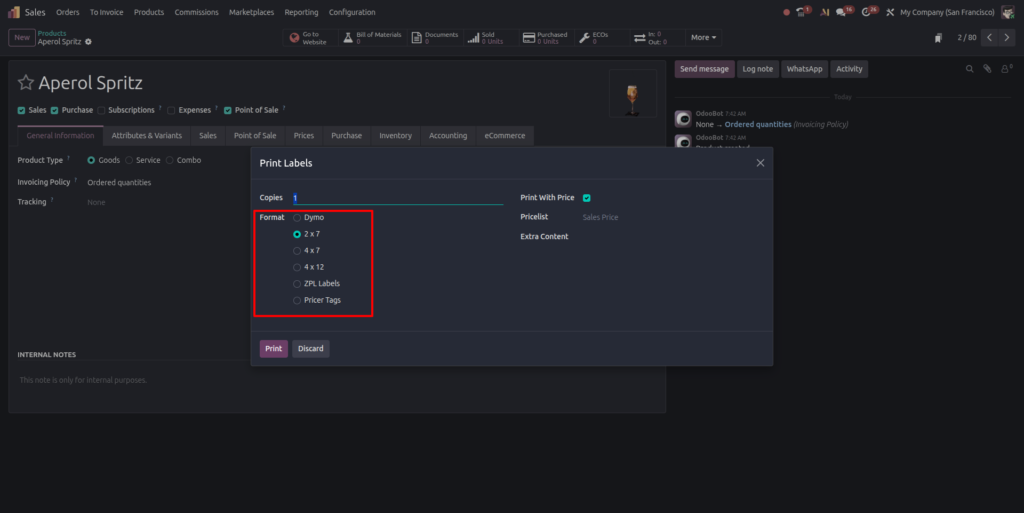
- Assign product barcodes
On each product, add the barcode your supplier printed, or generate and print your own for unbarcoded items. Consistent product barcodes make Odoo inventory barcode scanning fast and dependable for receiving and picking.
- Add lot and serial barcodes
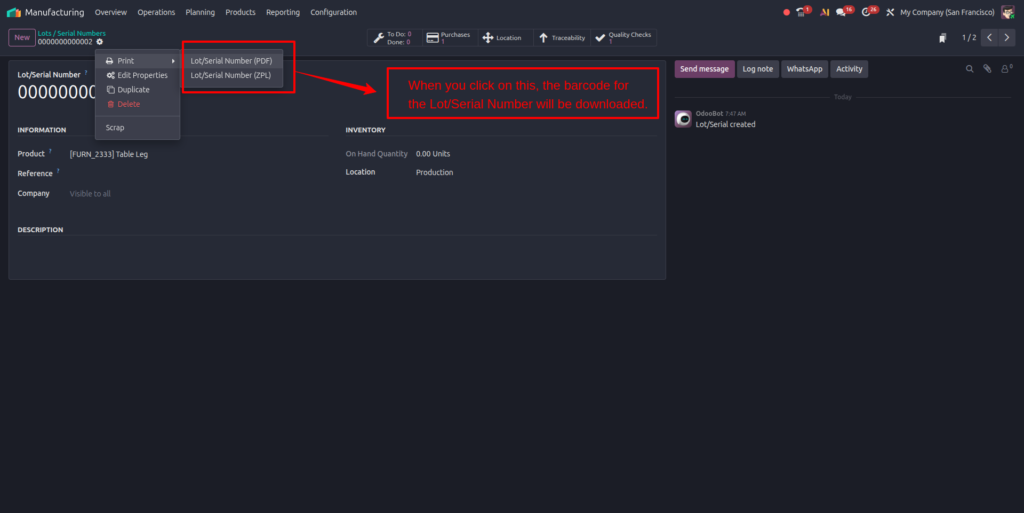
For items you track by lot or serial number, enable that tracking on the product and scan the lot or serial during each movement. This is where Odoo stock management earns its keep, because full traceability makes recalls and audits straightforward.
- Configure operation types
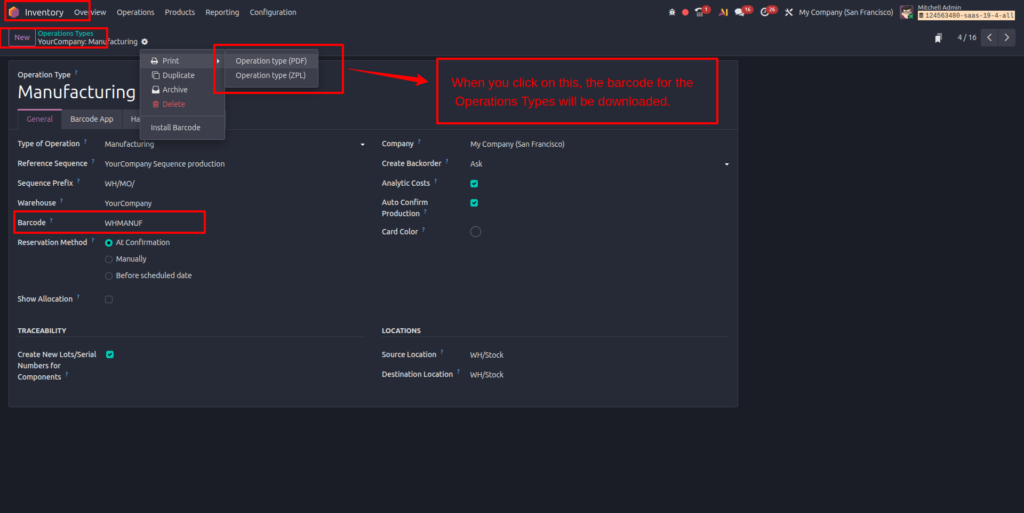
Decide where scanning is required, not optional. Making scans mandatory at receipts, putaway, picking, and dispatch is what delivers accurate Odoo warehouse barcode scanning end-to-end.
| Operation | What scanning does at this step |
| Receipts | Scan the product and location on arrival so stock lands in the right bin and counts update instantly. |
| Internal transfers | Scan the source and destination to move stock between zones without paper and without keying. |
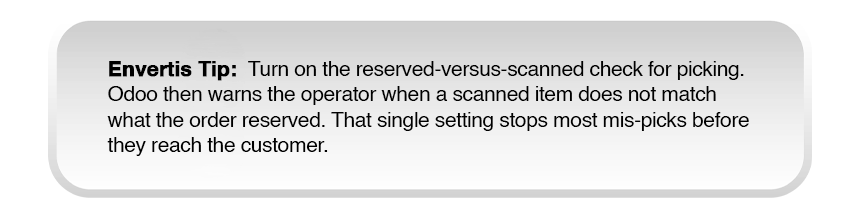
| Picking | Scan each item against the order so mis-picks are caught before the box is sealed. |
| Delivery | Scan on dispatch to confirm the right goods leave, and to close the movement in real time. |
Odoo Barcode Scanner Options for the Floor
The right device depends on how staff move and how heavy the scanning load is. These are the main Odoo barcode scanner options worth weighing up:
- Dedicated handheld scanners. Rugged, fast and built for constant use. Best for high-volume picking and receiving lanes.
- Smartphones and tablets. The Odoo mobile app uses the camera to scan. Ideal for roaming staff, cycle counts and smaller sites, keeping costs down.
- Wearable and ring scanners. Keep both hands free for lifting and packing, which increases pick rates in busy zones.
- USB or Bluetooth scanners. Simple, low-cost units for fixed packing and dispatch stations that feed straight into Odoo.
Testing and Rolling Out to Your Team
Don’t flip the whole site at once. Start by testing Odoo barcode scanning in a single area: pick a busy pick face and let a small team use it for a week or two. Watch label quality, scanning speed, and whether anything is missing in the naming. Iron out those issues before moving forward.
When that test zone runs smoothly, expand to the next area, zone by zone. At each step, keep training short and practical, right on the floor.
Work regular cycle counts into the Barcode app. That way, you are always checking accuracy instead of waiting for a once-a-year stock take. Done right, Odoo warehouse automation just slips into daily routines, not as a big project, but as the new normal.
Common Odoo Barcode Configuration Mistakes to Avoid
Most setup problems are predictable. Here are the ones that catch teams out most often, and how to head them off.
| Mistake | Why it hurts | The fix |
| Skipping location barcodes | Pickers guess bins, so accuracy never improves | Generate and print a barcode for every location first |
| Poor quality labels | Faded or smudged codes fail to scan and slow the floor | Use a proper thermal printer and verify labels before rollout |
| Over-engineering nomenclature | Custom rules break and are hard to maintain | Stick to default nomenclature unless labels encode extra data |
| Optional scanning | Staff revert to keying, and errors creep back | Make scans mandatory at receipts, picking and dispatch |
| No pilot or training | Adoption stalls and trust in the data drops | Pilot one zone, train hands-on, then expand |
Where Odoo Barcode Fits in Your Wider Systems
Barcode scanning is one piece of a bigger picture. When it feeds a well-configured warehouse, the accurate stock data flows straight into purchasing, sales, manufacturing and accounting. That is the real value of Odoo ERP solutions: one connected system rather than a stack of disconnected tools.
The flow is simple in practice. A scan at receiving updates purchasing. A scan at picking updates the sales order. A scan on the production line updates manufacturing. Nothing gets re-keyed, so the whole business works from the same live numbers instead of arguing over whose spreadsheet is right.

Getting Your Odoo Barcode Setup Right
Setup quality is everything here. A strong Odoo Barcode solution starts with clean data, smart operation types, and hardware that fits the workspace. With a solid plan, the process isn’t complicated. Experienced Odoo service providers do this kind of work all the time.
If your team’s resources are tight, the quickest fix is to bring in a partner to handle the design and configuration. They will deliver a stable, well-documented setup your staff can pick up and run with. Quality Odoo implementation services go beyond flipping switches. They build the warehouse system around your real workflow.
Configure Odoo Barcode the Right Way with Envertis
Accurate warehouses aren’t built on more effort. When you scan every move and keep your data up to date, mis-picks drop, counting gets faster, and audits are not such a mad dash. Odoo Barcode scanning is a smart place to start, but honestly, everything comes down to how well you set it up.
That is where the right partner really proves their worth. Envertis is a certified Odoo Gold Partner and Centre of Excellence, and we’ve been helping Australian SMEs and mid-sized businesses since 2006. We joined Odoo as a partner in 2017, and so far, we have delivered more than 80 Odoo implementations nationwide.
Our team configures Odoo Barcode scanning around your real workflows, from warehouse structure and nomenclature to hardware selection and team rollout, then documents the setup so your staff can run it with confidence. If you are ready to close the gap between what your system says and what sits on your shelves, talk to Envertis about a warehouse barcode setup that holds up under pressure.

Frequently Asked Questions
Q. Do I need a special scanner to use Odoo Barcode?
No. The Odoo mobile app scans with a phone or tablet camera, which is enough for smaller sites and cycle counts. Busy warehouses usually add dedicated handheld or wearable scanners for speed and durability, but you can start with the devices you already have.
Q. Which Odoo app do I need for barcode scanning?
You need the Inventory app, which includes the Barcode features. Enable barcode scanning in the Inventory settings, then configure your warehouses, locations, and product barcodes from there.
Q. Can Odoo track lot and serial numbers by barcode?
Yes. Once you enable lot or serial tracking on a product, your team scans the lot or serial number during each movement. This gives you full traceability for recalls, warranties and audits.
Q. How long does Odoo barcode setup take?
A single-warehouse setup can be piloted in a week or two once your locations and product barcodes are ready. Larger, multi-site operations take longer because of hardware, training and zone-by-zone rollout. A clear plan is what keeps the timeline predictable.
Q. Will barcode scanning really improve inventory accuracy?
It removes the biggest source of error: manual keying. With scanning at every movement and regular cycle counts, most warehouses move from patchy records towards the high-90s accuracy that best-in-class operations report.
Q. Should I set this up myself or use a partner?
You can configure the basics in-house if your team has Odoo experience. For multi-warehouse sites, custom nomenclature or tight integration with other processes, working with experienced Odoo service providers reduces risk and gets you to a stable setup faster.
