
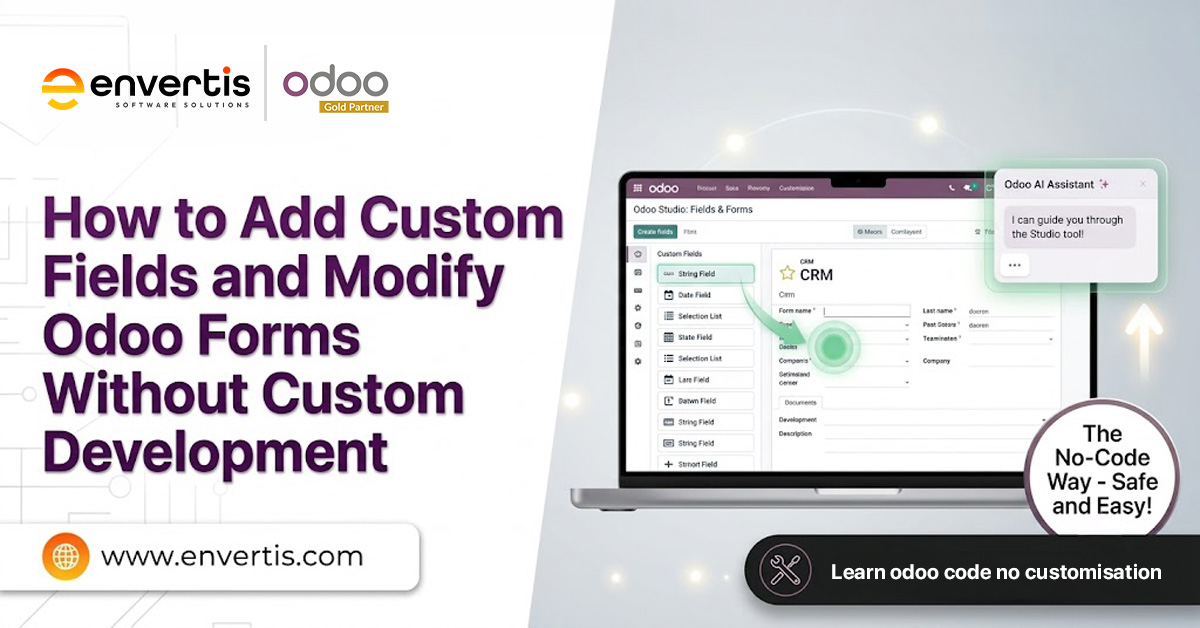
Many Australian small businesses think they need a developer and a new quote every time they want to change something in Odoo.
That myth drains both time and money. But before you call in Odoo ERP consultants, it is worth figuring out how much you can handle yourself. Odoo includes built-in tools that let you add fields, tweak forms, or reorganise layouts without coding.
This guide lays out what you can safely adjust on your own, where to draw the line, and when hiring a professional really makes sense. It is written for people who are comfortable navigating Odoo but are not Python coders.
By the end, you will know how to add Odoo custom fields, when simple configuration does the job, and when it is time to bring in an expert.
Why Custom Development Is Not Always the Answer
Custom code has a place. It also comes with a cost many businesses underestimate. Every custom module you add becomes something to test, maintain, and re-check at each upgrade. Over time, a stack of small custom builds can turn a simple upgrade into a project in its own right.
The wider market is moving towards configuration over code. Businesses want to configure what they can and reserve development for what truly needs it.
The cost of skipping that discipline is well documented.
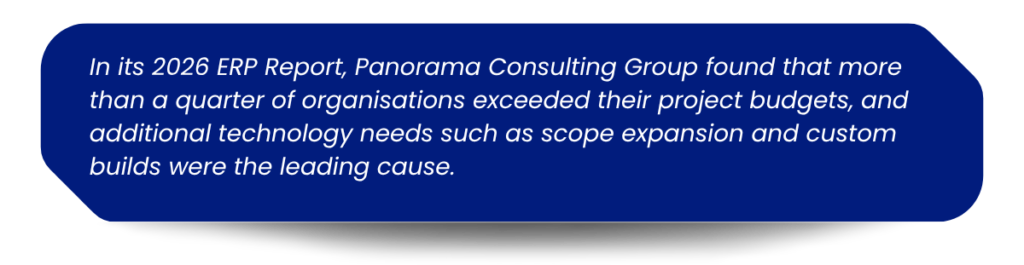
The pattern is familiar. Teams reach for code before exploring the built-in tools.
What You Can Change in Odoo Without Writing Code
Odoo gives administrators several ways to reshape the system through the interface. Each option suits a different level of change, and most everyday requests fall within the first two.
Odoo Studio, the Built-in Form Builder
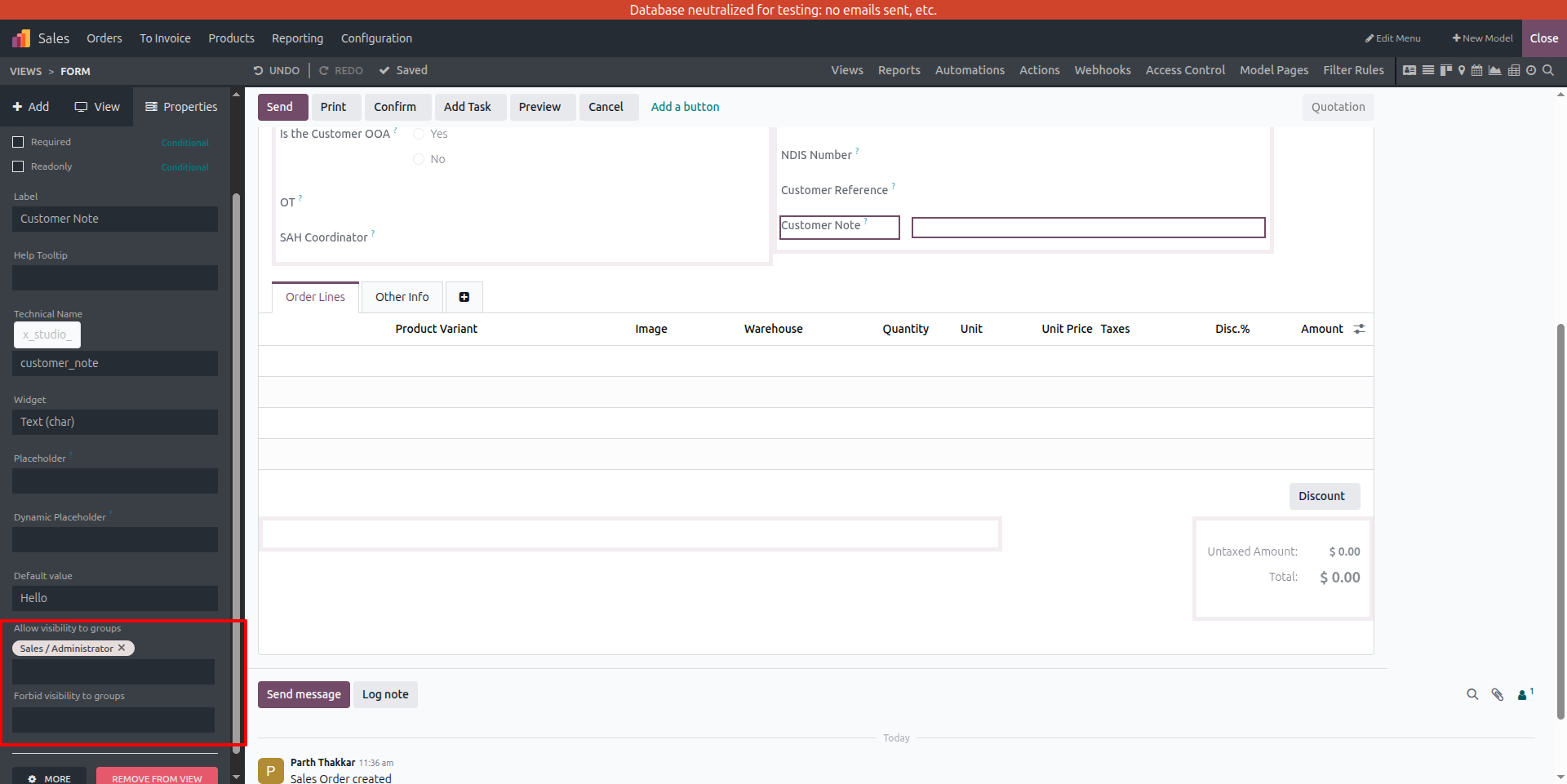
Odoo Studio is the drag-and-drop editor built into Odoo Enterprise. It is the closest thing to a true Odoo form builder, and it lets you reshape a screen in minutes. With Studio, you can:
- Add new fields to almost any form, list, or kanban view.
- Change field labels, order, and grouping.
- Add buttons, tabs, and status bars to a form.
- Create related and computed fields for simple calculations.
- Set basic automated actions, such as an email when a stage changes.
Studio is the fastest route to Odoo form customisation for most SMEs. It clears the everyday requests that would otherwise sit in a developer queue for weeks.
Developer Mode and Settings Fields
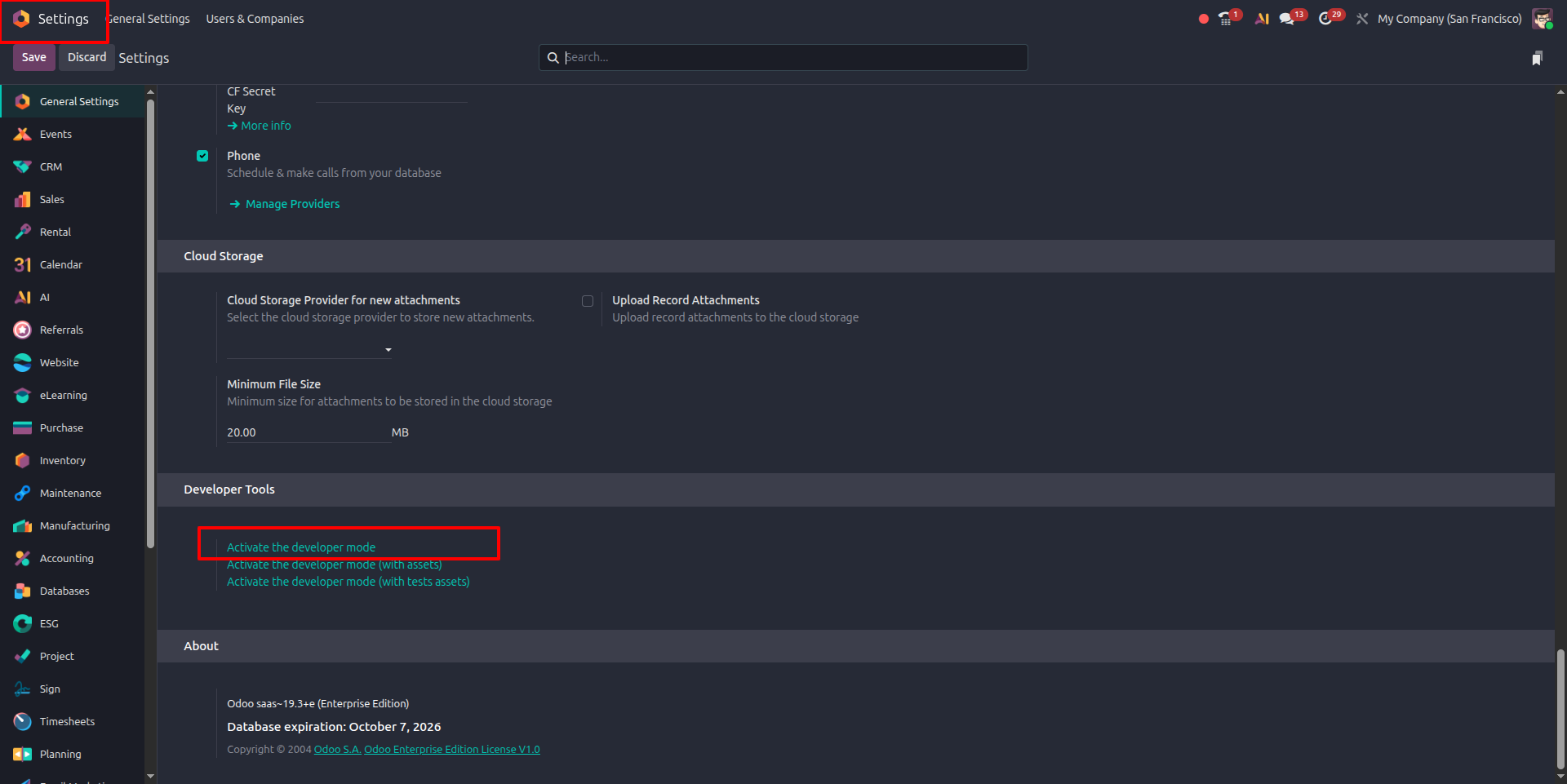
Activate developer mode from the general Settings page to unlock extra options across the interface. From here, administrators can add simple fields, edit views, and inspect how a screen is built. This path gives you Odoo field customisation without a Studio licence, and it suits smaller adjustments such as adding a text or selection field to a form. It takes a bit more care, so change one thing at a time and test as you go.
GUI Apps for Global Custom Fields
The Odoo App Store also offers no-code tools that add fields and tabs to any model from a simple wizard. These apps support common field types and let you set positions, required rules, and access rights. For teams on Odoo Community, they are a practical way to achieve Odoo no-code customisation and modify Odoo forms without building a module from scratch.
| Field Type | What It Stores | Common SME Use |
| Text / Character | Short text values | Reference codes, short notes |
| Integer / Float | Whole or decimal numbers | Quantities, weights, scores |
| Boolean | Yes or no | Simple flags and toggles |
| Date / Datetime | Dates and times | Delivery dates, follow-ups |
| Selection | A dropdown list | Status, category, or region |
| Many2one | A link to one record | Assigned salesperson or site |
| Monetary | Currency values | Custom charges or deposits |
Field types most no-code tools support for Odoo custom fields.
How to Add a Custom Field in Odoo, Step by Step
Screens can look a little different depending on your Odoo version and license, but the general process is pretty consistent.
Here is how customising with Odoo Studio or a no-code app usually goes:
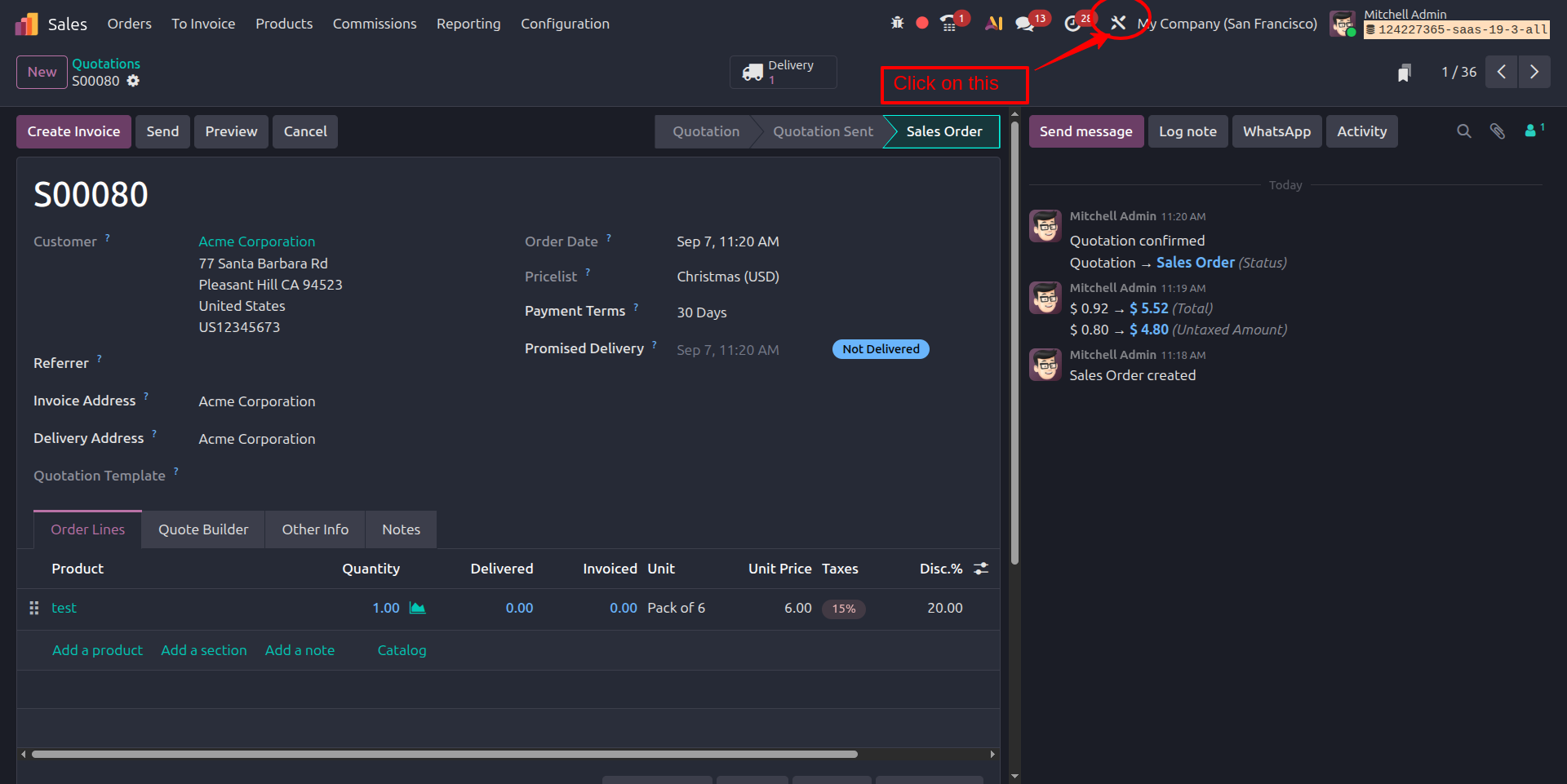
- Open the form you want to tweak, like a customer, product, or sales order.
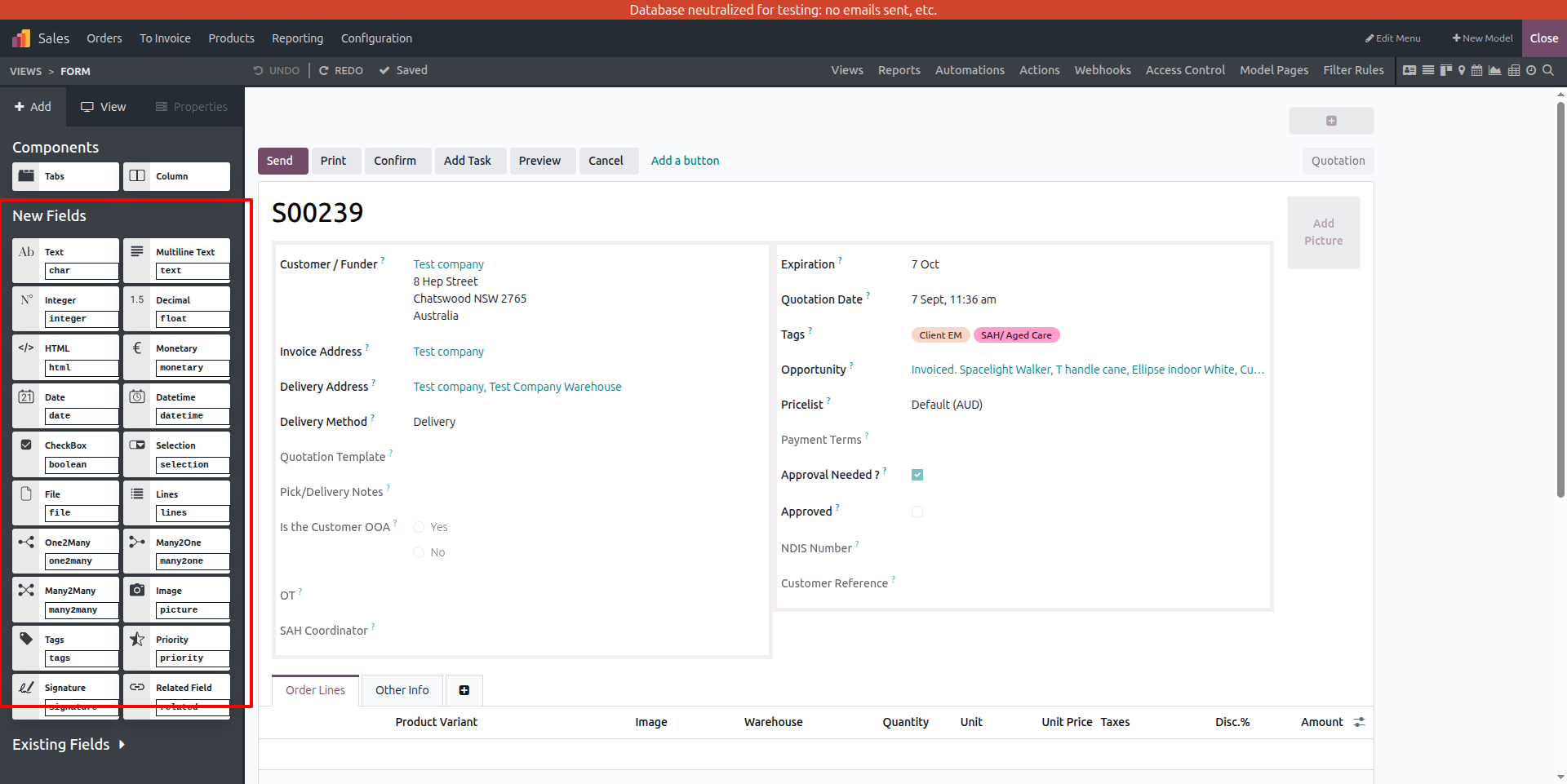
- Fire up the editor. If you are on Enterprise, click the Studio icon. For Community, switch to developer mode or use your custom-field app.

- Pick a field type that fits the information you want to track.
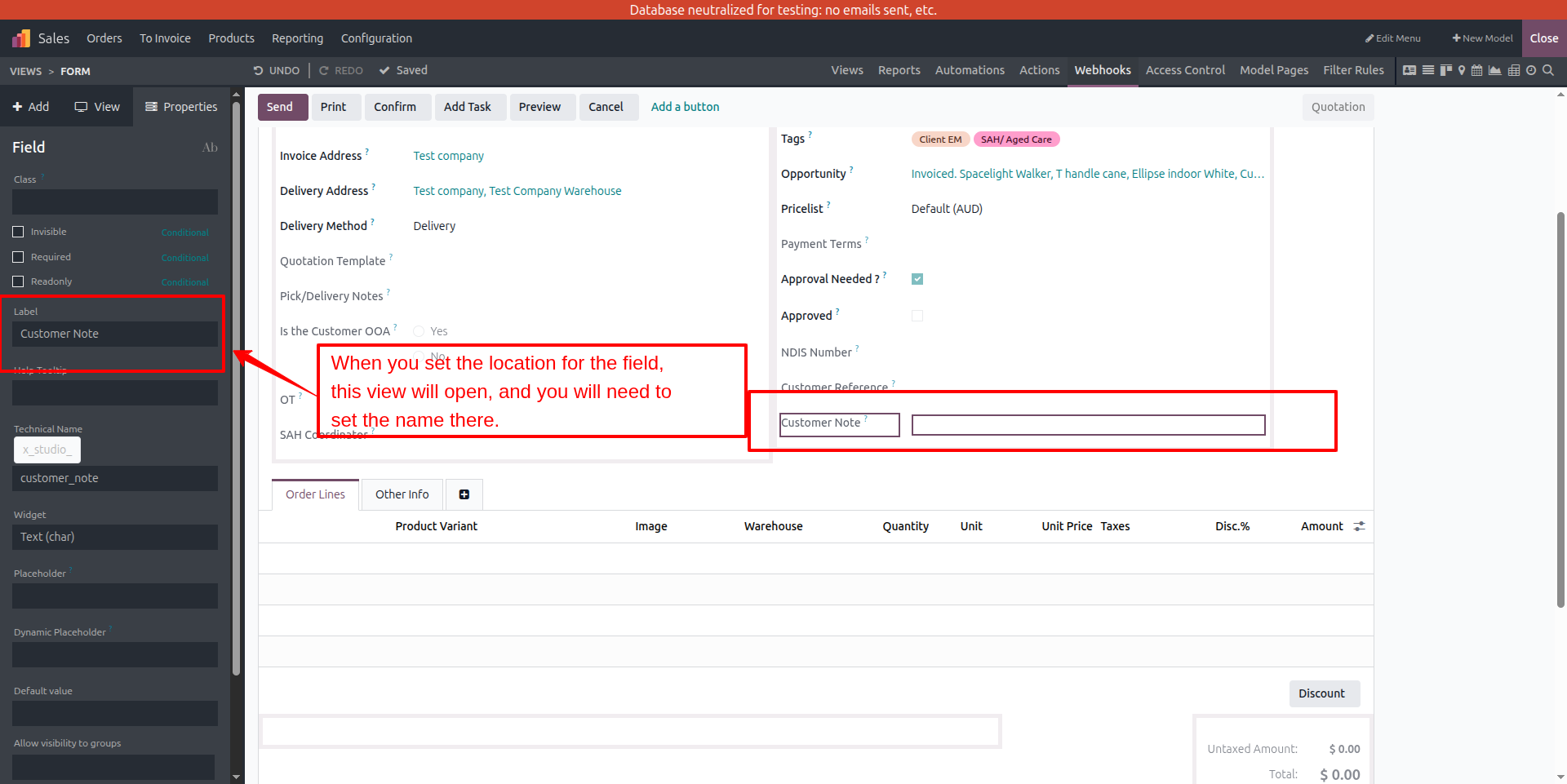
- Name the new field in a way that makes sense for your team.
- Drop the field where it feels right before or after an existing one.
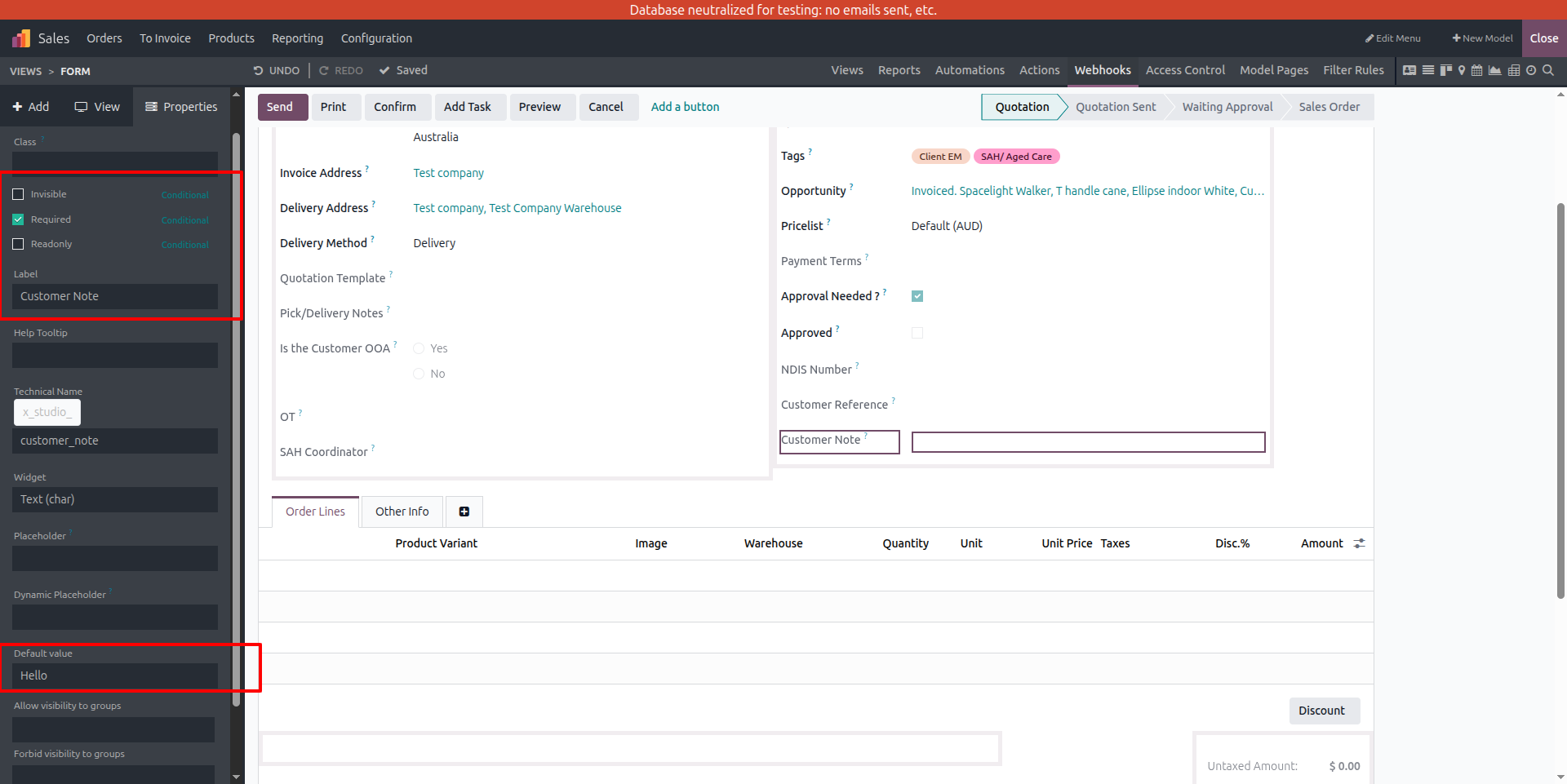
- Set things like required, read-only, or a default value if you need them.
- Lock down permissions so only certain users can edit sensitive info.
- Save your changes, then try it out with a real record before you share it with everyone.
A Practical Example, No Code Required
Picture a Melbourne wholesaler that wants to record a preferred delivery day against each customer. In the past, that small request might have gone to a developer as a change order, with a quote and a wait attached.
With Odoo Studio, an administrator opens the customer form, adds a selection field, and places it under the contact details in a few minutes: no release, no downtime, no invoice.
This is Odoo no-code customisation at its most useful. A functional user solves a functional problem the same day it appears. The same approach works when sales want an extra tracking field, or when operations need a checkbox on delivery orders.
Each change is a small act of Odoo field customisation that adds up to a system shaped around how your team actually works. When those changes start to stack into something complex, that is your signal to involve your Odoo ERP consultants.
Configuration VS Customisation: Knowing the Line
Configuration means using the tools Odoo already gives you. Customisation means writing new code to change how the system behaves. Both are valid choices. The skill is knowing which one a task actually needs.
| Requirement | Usually Configuration | Usually Customisation |
| Add a field to a form | Yes | |
| Reorder, group, or hide fields | Yes | |
| Simple automated email or task | Yes | |
| Complex approval logic across modules | Yes | |
| Integration with another system | Yes | |
| Reports with unusual calculations | Yes | |
| Performance-sensitive bulk processing | Yes |
If a task sits in the right-hand column, that is the point where experienced Odoo development services and Odoo integration services earn their fee. They build changes that stay stable through upgrades, which rushed edits often do not.

When to Bring in Odoo ERP Consultants
Doing the simple work yourself is smart. Knowing when to stop is smarter. Some requirements carry risks that careful configuration cannot remove.
Call in professional Odoo ERP consultants when:
- The change touches accounting, tax, or compliance data.
- Several modules or external systems need to work together.
- You need custom logic that must survive future upgrades.
- A mistake would affect live orders, stock, or payroll.
- Your team does not have time to test changes safely.
Good Odoo consulting companies do more than write code. They review your process first, and they often replace a requested custom build with a cleaner configuration. That is where reliable Odoo implementation services and ongoing Odoo support services protect your investment well beyond go-live.
Experienced Odoo service providers also document changes, so the next person who touches your system isn’t left guessing. When you do need a build, professional Odoo customisation services keep it lean, tested, and upgrade-ready.
Making Odoo Customisation Without Coding Part of Your Roadmap
Odoo customisation without coding works best as a habit, not a one-off. Give one or two administrators ownership of Studio, agree on a simple naming standard, and keep a short log of every change. That discipline keeps your Odoo form builder work tidy and easy to hand over, and it saves hours the next time someone asks why a field exists.
The habit also makes life easier for any external partner you bring in later. The best Odoo service providers will happily train your team to handle routine changes, then focus their own time on the work that needs real expertise, from Odoo development services to Odoo integration services. Established Odoo consulting companies treat this as a partnership, not a dependency.
With the right split between in-house configuration and expert Odoo support services, you get a system that grows with the business and does not fall apart at the next upgrade. That balance, not endless custom code, is the real goal of Odoo customisation without coding.
Draw the Line Between Configuration and Code with Envertis
At Envertis, we have been helping Australian SMEs get more value from Odoo since 2006. After more than 200 successful projects, we became an Odoo Gold Partner in 2024. If you need a fast review of your configuration, hands-on admin training, or complete Odoo implementation services, our consultants in Sydney, Melbourne, Brisbane, Adelaide, and Perth are ready to help. We will make sure you don’t over-engineer your system or make things more complicated than they need to be.
Start with one question about your current wishlist: how much of it could you handle yourself today? Talk to Envertis, and we will help you answer it, then draw a clear line between what you configure and what we build.

Frequently Asked Questions
Q. Can I add custom fields in Odoo without a developer?
Yes. Odoo Studio, developer mode, and no-code field apps all let administrators add Odoo custom fields through the interface. Developers are only needed for complex logic, integrations, or unusual reporting.
Q. Is Odoo Studio available in Odoo Community?
No. Studio is part of Odoo Enterprise. Community users can activate developer mode or use a no-code custom-field app from the App Store to modify Odoo forms without code.
Q. Will my custom fields survive an Odoo upgrade?
Fields added through Studio and standard configuration are designed to be upgrade-safe. Heavily customised code is more likely to need rework, which is one strong reason to keep changes simple wherever you can.
Q. How many fields can I add to an Odoo form?
No fixed limit will ever stop most SMEs. The real limit is usability. A form crowded with fields slows your team down, so add only what you genuinely use.
Q. Do I need to know Python for Odoo form customisation?
No. Basic Odoo form customisation and Odoo Studio customisation require no programming. Python is only required for custom modules and advanced system behaviour.
Q. When should I pay for Odoo customisation services instead of doing it myself?
Pay for help when the change affects compliance, spans multiple systems, or must stay stable across upgrades. In those cases, professional Odoo customisation services usually save more than they cost.
