

Product variants refer to products with various related options, allowing businesses to offer clients diverse versions of the same product. Odoo ERP provides a dedicated feature for efficiently handling these variations. Product variants enable the inclusion of unique attributes such as size, materials, and color at either the product template level, encompassing all attributes and variants, or at the variant level for individual distinctions. You can create these variants manually or bring them in from elsewhere.
To start using product variants, turn on this feature in Website ‣ Configuration ‣ Settings, specifically in the Shop – Products section. This allows you to easily handle and showcase the diverse options within your product range.
Key advantages of incorporating product variations on a sales platform include:
- Distinct Barcodes: Each variant possesses its own unique barcode, differentiating it from the product template and streamlining inventory management.
- Pricing Flexibility: The public price of any product variant is calculated as the sum of the product template price and any additional fees associated with specific attributes.
- Accurate Inventory Tracking: Unlike the product template form, which provides an overview of total variants, real inventory is tracked individually for each product variant.
- Visual Customisation: Each product variant has the flexibility to feature a unique image, enhancing the visual representation of the diverse product options.
Configuring Features of Product Variants:

If you want to create a product with different options, like different colors or sizes, you need to follow these steps:
- Click on the “Product” menu.
- Choose the “Product Variants” option.
In the window that appears, you’ll see all the different versions of your product neatly organised.
But, before you create a product with multiple options, you need to set up some details. Here’s what you do:
- Click on the “Settings” menu.
- In the “Configuration” section, open the “Settings” window.
- Look for the “Product Catalog” tab.
- Activate the “Variants” option there.
That’s it! Now you can create a product with various options easily. And, once these features are activated, you will need to save the changes in the configuration.
Settings Attributes:
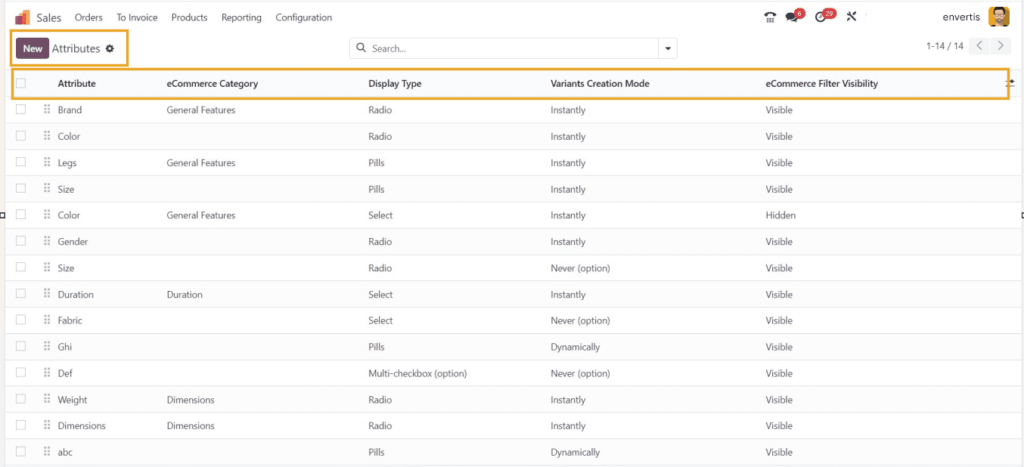
A product’s qualities are like its features, such as color, size, brand, material, and more. You can customise these features for the products you have in your sales inventory.
To do this, you have two ways:
- Click on “Variants” and then choose “Attributes” from the link there.
- Or, you can go to the “Configuration” menu and find “Attributes” in the dropdown.
Either way, you’ll end up on the “Attributes” dashboard, where you can tweak the features of your products.
Now, you will get to see all the features (attributes) generated in Odoo ERP. For each attribute, you can see its name, “eCommerce Category,” “Display Type,” “Variation Creation Mode,” and “eCommerce Filter Visibility.” If you need more details, you can add extra custom information.
To make a new attribute, click the “New” button in the top left corner.

When creating a new attribute, follow these steps:
- Start by entering the “Attribute Name” to give your attribute a title.
- Choose a category to group similar attributes on the eCommerce comparison page.
- Pick how you want your attribute to be displayed, like Radio, Pills, Select, or Colour.
- Decide when you want variants of this attribute to be created: Instantly, Dynamically, or Never.
- Choose whether you want this attribute to be visible or hidden in eCommerce filters.
In the “Attribute Value” Section:

- Add values for your attribute, and you can activate or deactivate the option for custom values.
- Set a default extra price for the attribute.
- After filling in the form, save your changes by clicking the save icon at the top. That’s it!
Now, you have created a brand characteristic in the “Attribute Value” section and added some brand names. This characteristic can now be used for future applications. Users can make different attributes using the same method.
Configuring Product Variants:

When setting up product variations, go to the “Products” menu. In the product category window, you can see details like Product Name, Reference Number, Sales Price, Quantity on Hand, and Number of Variables. Use the search bar to find specific products. Clicking on a product’s card opens its form view, allowing you to update and modify product details.
Creating a New Product:
To create a new product, click the “New” button. Enter the product name, and use the star icon to add it to your favorites. You can specify whether the product can be sold, purchased, expensed, used for recurring purposes, or rented. Options like “Can be sold,” “Can be Purchased,” “Can be Expensed,” “Recurring,” and “Can be Rented” determine the product’s usage.
- General Information tab: – In the “General Information” tab, you can set various product features, such as Product Type, Invoicing Policy, Unit of Measure, Purchase UoM, Sales Price, Customer Taxes, TaxCloud Category, Avatax Category, Cost, Product Category, Internal Reference, Barcode, and more.
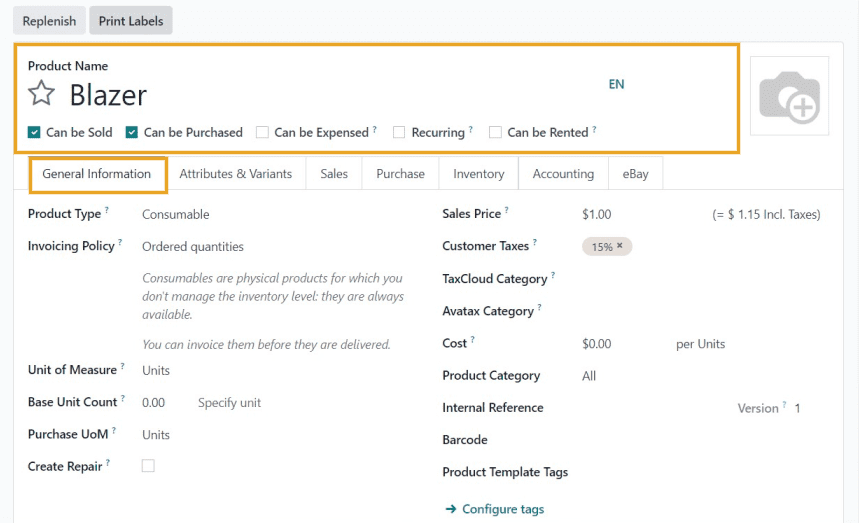
- Attributes & Variants Tab: This tab allows users to personalise product features like brand names, colors, sizes, patterns, and fabrics. They can also assign specific values for each variant and brand.
- Sales Tab: This section lets you modify products related to upselling, cross-selling, self-order descriptions, and media for various platforms like point of sale, e-commerce shops, and more. You can upload extra photos and videos and provide details for websites, sales, and point-of-sale availability.
- Purchase Tab: Here, you can find information about vendors, including names, subcontract services, purchase descriptions, and bill details. Users can choose existing vendors or create new ones, and a request for quotation (RFQ) is generated for each sale. You can also set vendor bills and purchase descriptions.
- Inventory Tab: This area provides details about inventory for operations, logistics, receipts, delivery orders, and internal transfers.
- Accounting Tab: In this section, you can set income, expense, and price difference accounts for receivables, payables, intrastate, automatic email at invoice, and UNSPSC.
- eBay Tab: Users can sell products on eBay by enabling the “Sell on eBay” option. They can customise product details like title, subtitle, condition, category, pricing, duration, and various policies for payments, returns, and shipping.
Creating Attributes & Variants:
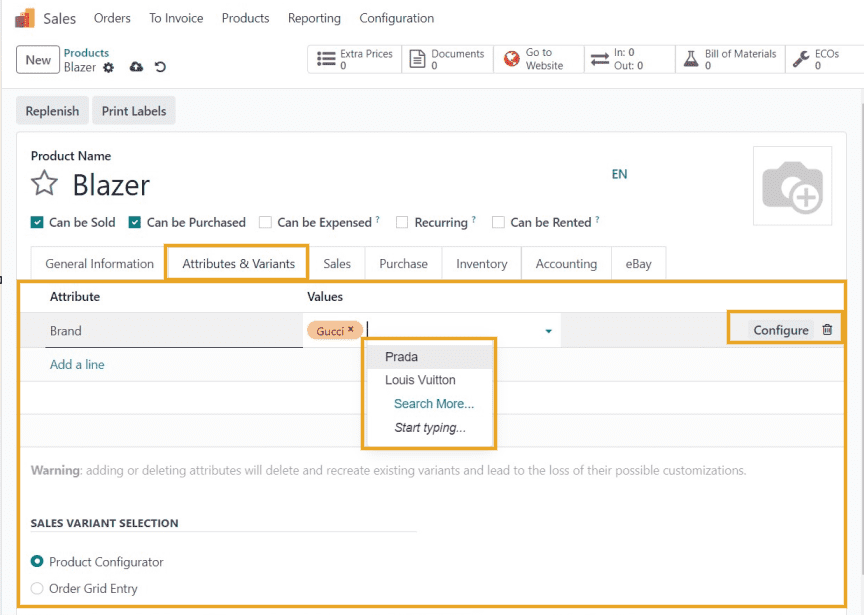
To make different product variations, use the “Attributes & Variants” tab in the product configuration form.
To add a new product version, click “Add a line,” select the attribute (like Brand) and its values from the drop-down list. Customise attributes using the “Configure” button. In Odoo 17, set the display type for variant selection in “Sales Variant Selection.” Save using the icon at the top. View variants in the sales page via the “Go to Website” tab. In the Sales Module, find stored variants under “Product Variants” in the “Products” menu. The dashboard displays details like Internal Reference, Name, Website, Variant Value, Sales Price, Cost, On-hand, and Forecasted Unit. Modify individual variant details by clicking on the variant. Each variation can have unique configurations.

Easily adjust product details in Odoo ERP 17 to match inventory updates, with a focus on efficiently handling and customising product variants, including size and color options at the template or variant level.

Effortlessly navigate your database’s Product Variables through our dashboard, offering insights into Internal Reference, Name, Website, Variant Value, Sales Price, Cost, On-hand, and Forecasted Unit. Easily configure settings for specific product variations by clicking on the desired variant column, opening a detailed form view below.
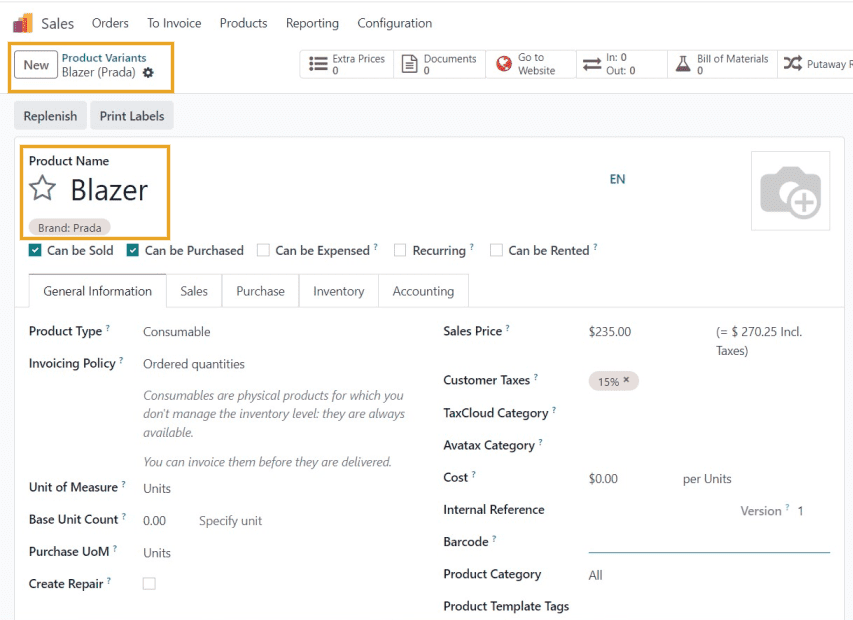
Effectively manage Product Variants with Odoo 17 Sales App. Tailor individual specifications, including Price, Inventory, Accounting, Purchase, and more, for each variation, allowing unique configurations for every variant.
You can get in touch with us at Envertis to streamline your product variants using the new and advanced Odoo 17 Sales app. We have certified Odoo consultants to meet your ERP requirements.
